
01 / YOUR WORKSPACE
Open a workspace. Choose a starting point.
Use the Engineering Genius address supplied by your administrator. If sign-in is enabled, a new account may need approval. Then choose New project, open a built-in example, or bring an existing calculation.
Moving an existing model? Review import and conversion options before you begin.
You can try the interactive calculations on this site without an account.
02 / EXPLORE THE EDITOR
Keep engineering context at your cursor.
Whether the agent wrote the first model or you did, the same editor helps you refine it. Completion, function help, unit checks, and numerical analysis are available without AI.
- Complete the calculation with context.
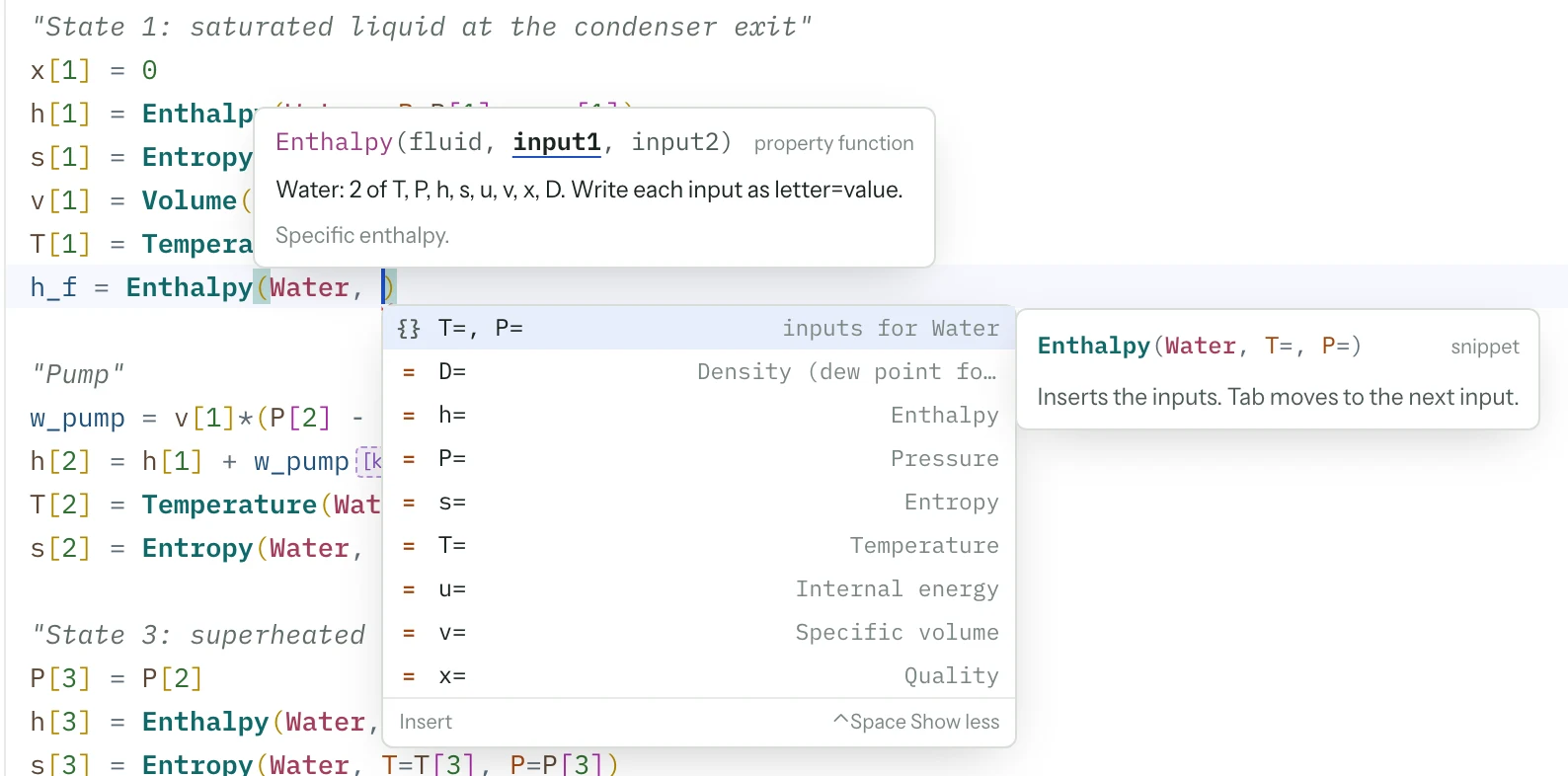
Type or press Ctrl+Space for variables, functions, fluids, and units. After
Enthalpy(Water,, the list offers valid inputs for Water. When you enter units after a number, the expected units appear first. Function help shows the signature and examples beside your work. - Choose how AI helps you write.
With an AI model configured, the AI control enables suggested continuations and next edits. Tab accepts a suggestion; Escape dismisses it. For a deliberate change, select the equations, give an inline instruction, and review the proposed changes before keeping them.
- Trace and refine the model.
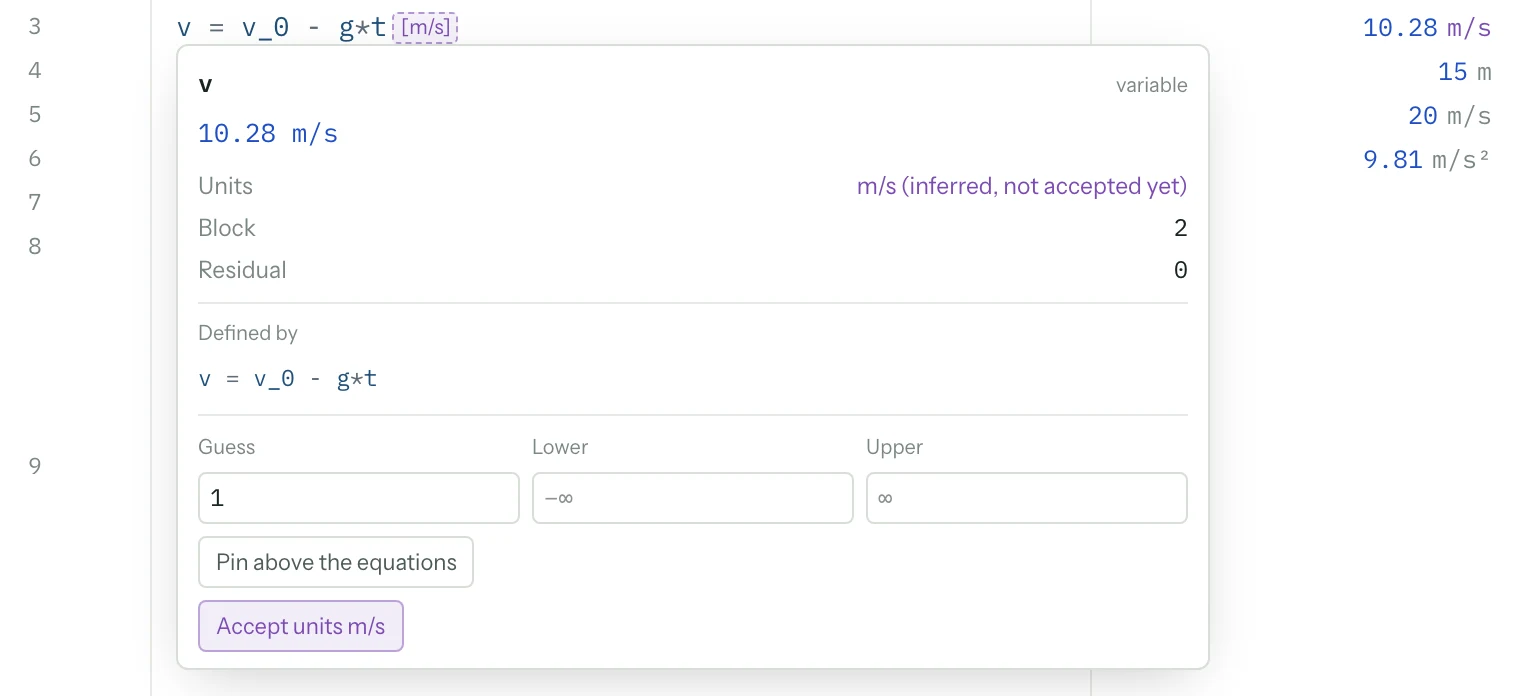
Hover over a variable for its value, units, defining equation, guess, and bounds. Use Go to definition or Find references to follow dependencies. Rename keeps a variable’s associated settings with its new name. Inferred unit hints can be accepted and checked against the equations.
- Make a change and see its effect.
Enable Live to solve after a pause in typing. It waits for a valid check and supports up to 400 equations; larger models use Solve. Hold Alt (Option on a Mac) and drag an input number to recalculate. Pin important results and compare their changes against the baseline.
Inspect unit warnings and the equations with the largest residuals. Check variables that reached a bound, then adjust guesses or limits in the inspector. Find other solutions searches from different starting values for additional roots.
03 / BUILD WITH AI
Give the agent an engineering brief.
Open the Agent panel. Use Plan mode to agree on an approach, then start the plan; use Agent mode to let it build and solve the model. You do not need to write the governing equations before you start.
- State the system and the goal.
Describe the system, known inputs, operating conditions, constraints, and the result you need. Include units and explain what a useful answer should help you decide.
- Ask for the modeling assumptions.
Ask the agent to identify missing information and explain the assumptions, property methods, and boundary conditions before developing the calculation.
- Build, solve, and compare.
Ask the agent to build the model and run the solver. Review the equations and results with units, then change an input or assumption to compare alternatives on the same basis.
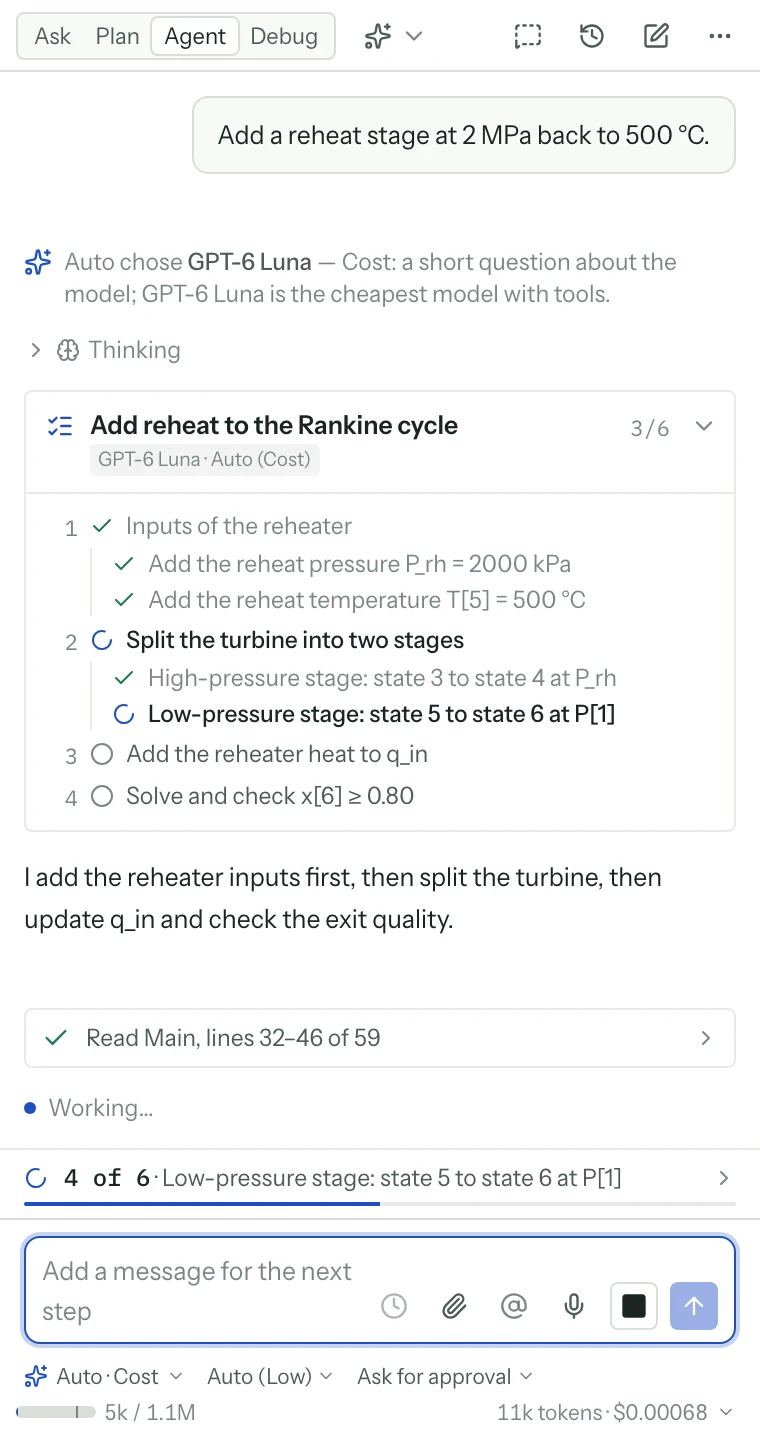
Describe the problem in a language supported by your selected AI model. Keep quantities and units explicit, and check that the model reflects your intended meaning.
04 / REVIEW THE REASONING
Question the assumptions. Inspect the calculation.
The agent writes equations into the project and calls the checking and solving tools. Read the assumptions and the property calls, inspect the units and results, and review the edits. Changes appear in the model with controls to keep or undo them.
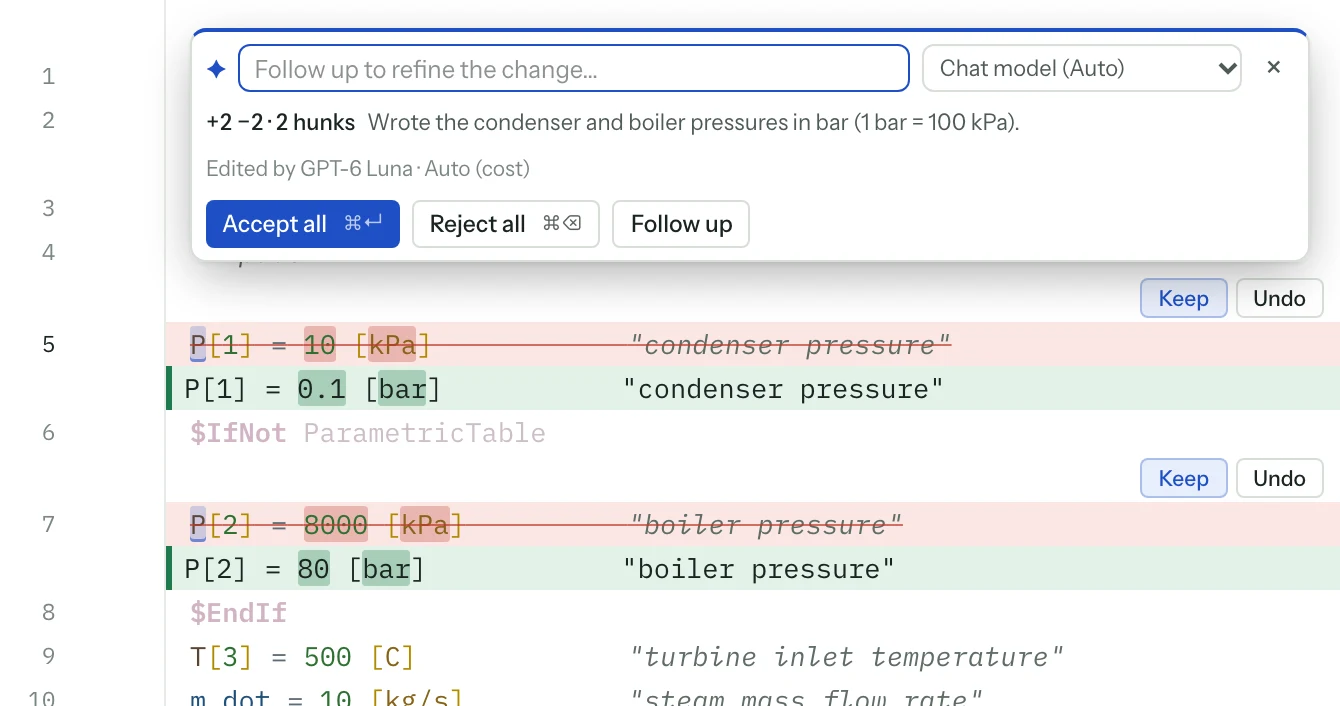
Ask: “Which assumptions have the largest effect?” or “Repeat the calculation with a different assumption.” A successful numerical solve checks the equations as written; you still need to establish that those equations represent the physical problem.
CoolProp supplies the main real-fluid properties. Ideal-gas and psychrometric calculations use other documented property models. Use the function help to inspect the method and the applicable range.
Prefer to write a model directly?
You can write and solve equations without AI. As a small example, a ball is thrown upward at 20 m/s. When does it reach 15 m? Open “Getting started: a ball thrown up” or enter these equations.
h = v_0*t - g*t^2/2
v = v_0 - g*t
h = 15 [m]
v_0 = 20 [m/s]
g = 9.81 [m/s^2]- Solve the model.
Select Solve, press F2, or use Ctrl+Enter (Cmd+Enter on a Mac). The equations can appear in any order.
- Read the answer in context.
On the way up, the ball reaches 15 m at about 0.99 s, moving at about 10.3 m/s. Hover over a variable to inspect its value, units, and defining equation.
- Find the other solution.
In the Variables panel, set the guess for
tto 3 and solve again. The second solution is on the way down, so velocity is negative.
05 / FROM ONE CASE TO A STUDY
Ask a better “what if?”
Ask the agent to vary a design input, run a parametric table, and plot the result. Request a process diagram with the known inputs and calculated outputs. For a cycle study, start with the built-in Rankine model and compare boiler pressures.
To explore an input directly, right-click its number and choose Quick sweep. Set the range and choose the outputs to plot. Each point runs the numerical model; failed points appear as gaps. The sweep leaves your equations unchanged. For a target, choose Goal seek, review the candidate input, then select Use to apply it.
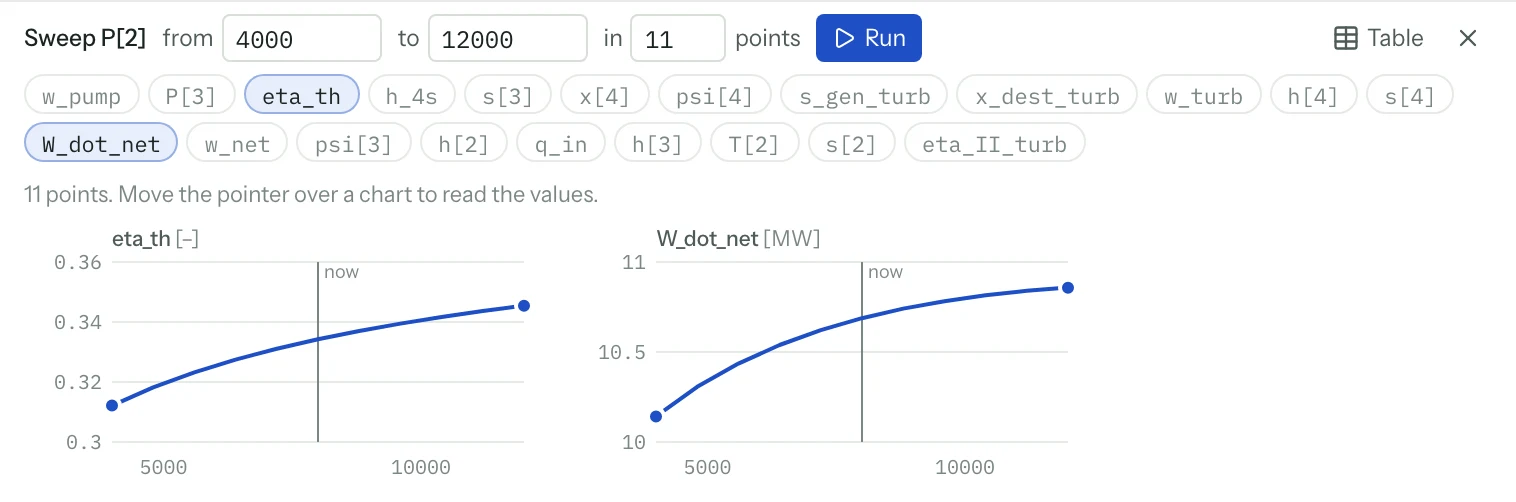
Use Goal seek when you have a target output. Use Min/Max to search within bounds. Sensitivity and uncertainty analyses help you understand which inputs matter and how much confidence to place in a result. You can also connect power and operating hours to an energy-cost calculation, with tariffs and assumptions stated explicitly.
06 / BUILD ON EXISTING WORK
Bring a calculation. Review what carries over.
A new problem can start in words. Existing work can start from an imported model or spreadsheet. These are different entry points into the same reviewable workspace.
Mathcad worksheets
Import supported definitions, functions, units, and expressions from .xmcd and .mcdx files. Range variables, matrices, programs, and unsupported expressions are marked for review rather than silently treated as solved.
Excel calculations and data
Use “Convert an Excel calculation to equations…” in the command palette for supported .xlsx formulas. Formula conversion is separate from importing spreadsheet values as a lookup table. Unsupported functions and text formulas are noted for review.
EES models
Import supported models, libraries, tables, and diagram content. Review dependencies, property methods, and numerical differences. Review EES file compatibility.
Keep the original file and compare a known result after conversion. Use “Tidy with the agent” to improve variable names, add missing units, and work through skipped expressions.